UCANR

IWP Training Videos

To help you become more confident and efficient when working in IWP—our Drupal-based content management platform—we’ve created a collection of short, focused video tutorials. These recordings walk you through common editing tasks and features so you can quickly get familiar with the tools you’ll use most. Please note that as the platform continues to evolve, you may notice slight differences between the videos and the current interface or functionality, but the core concepts and workflows remain the same.

Video 1 Screenshot:
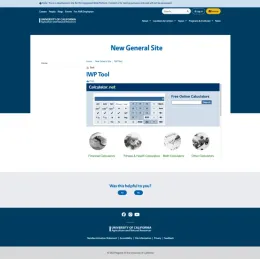
image of a calculator on documents


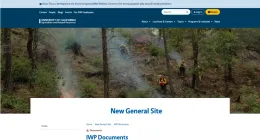
Video 2 Screenshot:

Screenshot of the University of California Agriculture and Natural Resources website showing a forest scene with prescribed burn activity and firefighters in the background, and a page titled “New General Site” with “IWP Documents” listed below.


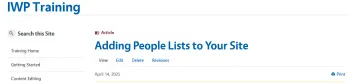
Video 3 Screenshot: 

Screenshot of an “IWP Training” webpage showing a sidebar with navigation links and an article titled “Adding People Lists to Your Site,” dated April 14, 2025, with options to view, edit, delete, or see revisions.


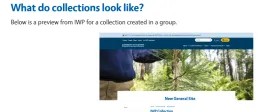
Video 4 Screenshot: 

Section titled “What do collections look like?” with explanatory text and a preview screenshot of a University of California Agriculture and Natural Resources webpage showing a banner image of a person examining a pine tree and a page titled “New General Site.”


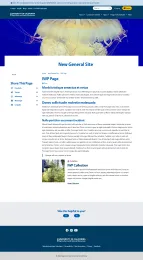
Video 5 Screenshot:

iwp-page


Video 6 Screenshot: 

Box of Fresh Picked Peaches

Summary of what is covered:
 Video 1 : A video to teach the user how to add a tool to a group node.


Video 2:  A video to teach the user how to create documents in IWP


Video 3 : A video to teach the user how to add people in IWP


Video 4 : A video to teach the user how to create a curated collection


Video 5: A video to teach the user how to create a page in IWP


Video 6: A video to teach the user how to create a blog in IWP


Video 7 Screenshot:
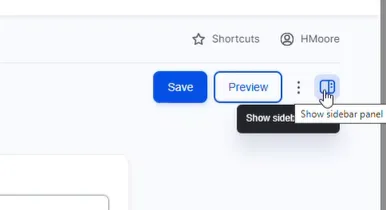
Image
“Toolbar with Save and Preview buttons and a tooltip reading ‘Show sidebar panel’ next to a sidebar icon.”

Video 7: How to navigate the article side bar in the IWP Menu


Video 8 Screenshot:
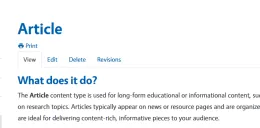
Screenshot of an article page with the heading “Article,” navigation options (View, Edit, Delete, Revisions), and a section titled “What does it do?” describing the Article content type.

Video 8: A video to teach the user how to create an article in IWP

Video 9 Screenshot:

Screenshot of an article page titled “Updating a URL by Changing a Custom Slug” with action buttons for View, Edit, Delete, and Revisions, dated July 28, 2025.

Video 9:  A video to teach the user how to update a URL by changing a custom slug in IWP

Video 10 Screenshot:
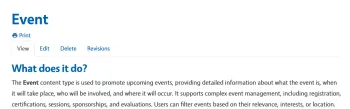
Screenshot of a webpage titled “Event” with navigation links Print, View, Edit, Delete, Revisions. Below, a section titled “What does it do?” explains that the Event content type promotes upcoming events and provides details such as what the event is, when and where it takes place, and who is involved. It also supports features like registration, certifications, sessions, sponsorships, evaluations, and event filtering by relevance, interests, or location.

Video 10: A video to teach the user how to create an Event in IWP

Video 11 Screenshot:
image of IWP provisioning users to your group (sites and blogs)

Video 11: A video to teach the user how to add, edit and remove members in IWP

Video 12 Screenshot: 

An image containing the phrase "Creating and posting content" in a bold, sans-serif, blue font against a plain white background. The text is slightly cropped at the bottom, suggesting it is a header or title from a larger document or presentation.


The referenced media source is missing and needs to be re-embedded.


Video 12:  A video to assist new users when making new content creation in IWP

Video 13 Screenshot: 

Two newborn black and white spotted calves.

Video 13 : A video to teach new users how to update broken media links in IWP

Video 14 Screenshot:
An image with a blue gradient background. In the top-left corner, the text "IWP Training" is in large white letters, with "Broken Links" in smaller white letters below it. In the bottom-right corner is the logo for the "University of California Agriculture and Natural Resources."

Video 14: A video to teach new users how to update broken links in IWP

Video 15 Screenshot: 
The image shows the header of a Drupal guide titled "Group Menu." Below the title is a blue print icon, followed by navigation tabs for "View," "Edit," "Delete," and "Revisions," with "View" currently selected. The introductory text explains that the guide covers how to add, edit, and manage group menus for structured navigation.

Video 15: A video to teach new users about Group Menus Pt.1

Video 16 Screenshot:

The image shows the header of a Drupal guide titled "Group Menu." Below the title is a blue print icon, followed by navigation tabs for "View," "Edit," "Delete," and "Revisions," with "View" currently selected. The introductory text explains that the guide covers how to add, edit, and manage group menus for structured navigation.

Video 16: A video to teach new users about Group Menus Pt.2


Source URL: https://ucanr.edu/site/iwp-training/iwp-training-videos