
Archiving Documents and Pages
IT has pushed out the IWP Archive and it is now available for all IWP users. As part of this release, we have proactively archived every document (Word files, PDFs, etc.) stored in IWP. Below you’ll find a quick guide on how the archive works.
Where to Find the Archive
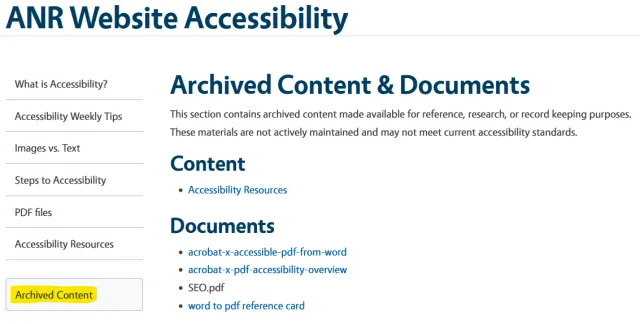
The Archive Content link appears at the bottom of the left‑hand navigation menu on sites with archived material.
Archived pages will display under the Content section and document files will be listed under "Documents". These are sorted by their Name / Media Name and not their Title.
All existing documents have been moved to the Archive. Word, PDF, spreadsheet, and other files you previously uploaded have been moved to the archive. Links to the archived documents will show an "Archived" Label.
Archive a Single Page
To archive a single page on your site:
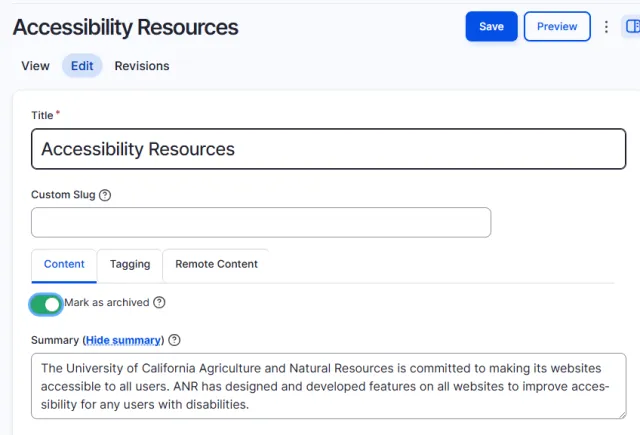
- Open the page you want to archive and click Edit.
- Locate the Mark as Archived toggle on the Content tab.
Click the toggle:
Green (toggle on right) → the page is now archived and will appear in the Content list of the Archive.
Gray (toggle on left) → the page is active (not archived).
- Save the page. The change takes effect immediately.
- To un‑archive a page, click the toggle again until it turns gray, then save
Archive a Single Document
To archive a single document on your site:
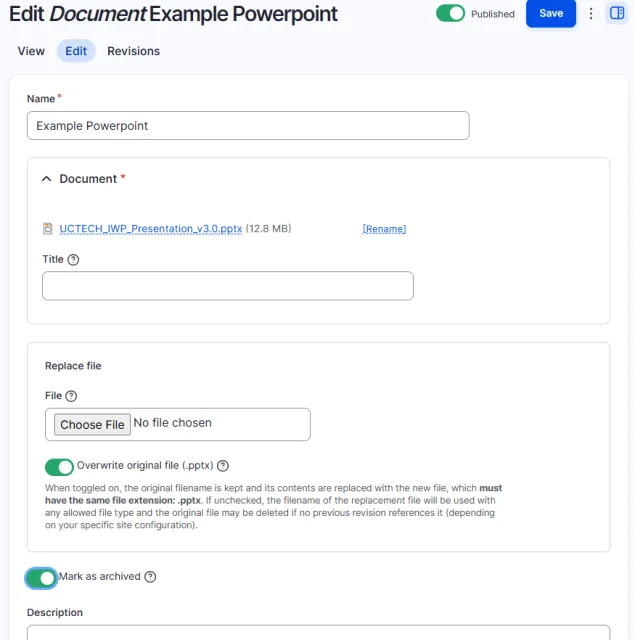
- On the Media tab, click the Edit button next to the Media item.
- Locate the Mark as Archived toggle below the Replace file box.
Click the toggle:
Green (toggle on right) → the document is now archived and will appear in the Document list of the Archive.
Gray (toggle on left) → the document is active (not archived).
- Save the document. The change takes effect immediately.
To un‑archive a document, click the toggle again until it turns gray, then save.
Bulk Archive
To archive (or unarchive) multiple pages or documents at once:
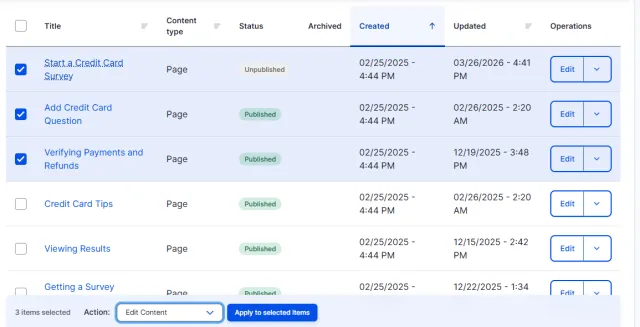
- Click on the Content or Media tab for your site.
- Use the check boxes to the left of the page or document titles to choose more than one item.
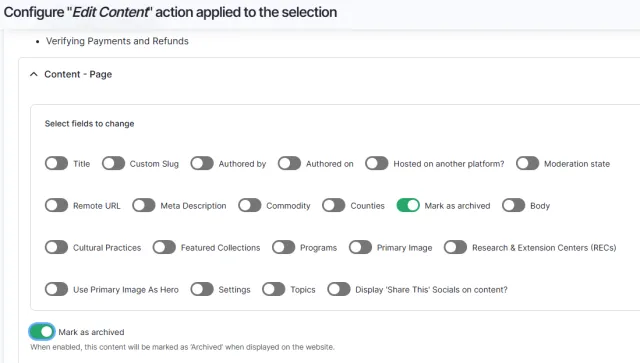
- At the bottom of the page, a Action drop down will appear. select Edit Content or Edit Media, then click Apply to selected items.
- On the Edit Content action page, click the Mark as archive toggle to move it to the right and turn it green.
- A second Mark as archive toggle will display below the Select fields to change box. Click this toggle to slide it to green.
- Click the Apply button to save the content as Archive.
To do a bulk unarchive pages or documents, click the toggle to slide it to gray, then click Apply.
Accessibility‑Remediation
Reminder
IT has hired two content editors to remediate accessibility issues on all sites. If you are actively working on your site, please close out any content at the end of your day (or when you finish editing). This ensures you don’t unintentionally overwrite or undo the remediation work that was performed while you were away.