

On this page, you will find tips and resources to help you complete your 24-hour food and drink recall.
If you have questions or need more help, we encourage you to email the research team at schoolmealsstudy@ucanr.edu.
Table of Contents
Overview
This table gives an overview of the 4 main parts of the 24-hour food and drink recall. After you log in to the ASA24 website (https://asa24.nih.gov), you will be guided through each of these 4 parts.
| Part 1: Getting Started | Part 2: Reporting Meals & Finding Foods/Drinks | Part 3: Adding Details | Part 4: Reviewing & Wrapping Up |
Login. Please choose a language: English or Español. Read the instructions and user orientation. | Start by reporting a meal, snack or drink that you ate or drank the day before. Find and report each food and drink item that this meal, snack or drink contained. Repeat the steps above for each remaining meal, snack, or drink that you ate or drank the day before. | Add details about each item in the meals/snacks/drinks that you reported by answering questions like, "where did you get this food?" and questions about things like portion size and ingredients. If needed, add additional meals/snacks/drinks that you have not yet reported. | Review your responses and make changes as needed. Frequently Forgotten Foods: If needed, add additional foods that you forgot to report. Select "No" to the question about alcoholic beverages. Answer the question that asks: "how usual was the amount you reported?" Submit the ASA24 recall by clicking "Next." Thank you! |
NOTE: If any parts of the online recall feel unclear, the “Step-by-Step" section shows detailed steps for completing the recall. Under “More Resources,” you can also click on the Step-by-Step Video (English or Spanish) and the Quick Start Guide to Completing the Recall (English or Spanish) for additional guidance.
Tips
Read tips about a few spots some students found tricky when completing the 24-hour food and drink recall.
Reporting Water:
To report water that you drank the day before, there are two options:
- (Option 1) If you drank the water on its own (not as part of a meal or snack), click: Report a Meal. Then, select “Just a drink.” Then, type water into the Search bar.

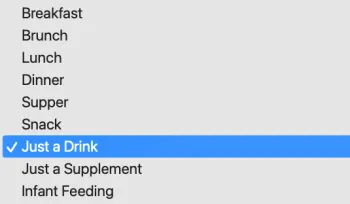

- (Option 2) If you drank the water as part of a meal or snack: add the water as part of the meal or snack by typing it into the Search bar during the "Find Foods and Drinks” step.
Reporting Dessert:
To report a dessert that you ate the day before, there are two options:
(Option 1) If you ate the dessert on its own (not as part of a meal), click: Report a Meal. Then, select “Snack.” Then, type the dessert’s name into the Search bar.
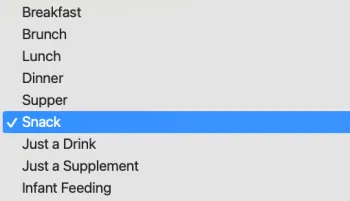

- (Option 2) If you ate the dessert as part of a meal: include the dessert as part of the meal by typing it into the Search bar during the "Find Foods and Drinks” step.
Frequently Forgotten Foods:
Near the end of the recall, you will be displayed a list of commonly forgotten foods and drinks such as water or dessert, and you will be asked to click on the categories containing a food or drink you may have forgotten to report.
NOTE: We are not collecting information about alcoholic beverages. Please answer “No” to the question that asks about beer, wine, or cocktails.
If you select any of the other foods or drinks and click “Report Foods,” then the online tool will take you back to your list of meals, snacks, and drinks. Then you have two options:
- (Option 1) To add something to a meal, snack, or drink, click: Add

- (Option 2) To add a new meal, snack, or drink that you have not yet reported, click: Report a Meal
Finding Foods and Drinks:
If you can’t find a match for the thing you ate or drank:
Go back to the Search bar to check the spelling, or
Try typing a more general/generic item name in the Search bar
If you still can’t find a match for the thing you ate or drank:
- Click “Add a recipe” at the top of the list of results, or

- Click “I can’t find what I’m looking for” at the bottom of the list of results

More Resources
Resources for completing the 24-hour food and drink recall.
Step-by-Step Video:
English – ASA24: Reporting Foods, Drinks, and Dietary Supplements
Spanish – ASA24: Informes de alimentos, bebidas y suplementos
Guide to Completing the Recall:
English – Participant Quick Start Guide for 24-Hour Recall using ASA24
Spanish – Guía de inicio rápido para participantes sobre registros de las 24 horas utilizando ASA24
Frequently Asked Questions (FAQs)
Read answers to common questions about completing the 24-hour food and drink recall. Based on ASA24: Reporting Foods, Drinks, and Dietary Supplements.
What is the ASA24?
The ASA24 (Automated Self-Administered 24-Hour Dietary Assessment Tool) is an online food and beverage recall tool. It is used to report everything that you ate and drank the day before. For example, if you’re asked to log in on Tuesday, you will be asked to recall and report on everything you ate and drank on Monday.
Which foods and drinks do I include?
Please report everything that you ate and drank the day before, between 12am to 11:59pm. This includes breakfast, lunch, dinner, and dessert foods. This also includes any snacks or drinks (including water).
Do not enter any alcoholic beverages. Also, answer “No” to the question about alcoholic beverages under the “Forgotten Foods” section.
Does every question in the ASA24 require an answer?
Yes. The ASA24 doesn’t let you skip questions or leave questions blank. But do not enter any alcoholic beverages. Also, answer “No” to the question about alcoholic beverages under the “Forgotten Foods” section.
How long does it take to complete the ASA24 recall?
About 15–30 minutes. But, it may take more time or less time than this depending on what you ate or drank the day before.
Once I start the ASA24 recall, can I save my work and finish it later?
Yes. To do this, you may click the “Finish Later” button in the top right corner. But, if you do not finish your recall by 11:59pm that night, then your work will not be saved.

NOTE: If you are on the “Find Foods and Drinks” page and do not click “Finish with This Meal” before clicking “Finish Later,” then your information for that meal, snack, or drink will not be saved.
Do I need to complete the entire ASA24 recall to receive the e-gift card?
Yes. In order to receive your thank you gift, the Amazon e-gift card, from the Nutrition Policy Institute (NPI), you must complete the recall in full and submit it.
Step-by-Step
Read this if you want a step-by-step guide for completing each of the four main parts of the 24-hour food and drink recall.
Part 1: Getting Started
- Log in to ASA24. Use the username and password that UC NPI texted/emailed to you.
- Please choose a language: English or Español
- Read the instructions and then click: Next

- Read the orientation. After each step, click: Next
Part 2: Reporting Meals & Finding Foods/Drinks
- On the home screen, click: Report a Meal
Tip: While filling out the recall, if you want to save your progress and then finish later, you may click the “Finish Later” button in the top right corner. But, if you are on the “Find Foods and Drinks” page and do not click “Finish with This Meal” before clicking “Finish Later,” then your progress for that meal, snack, or drink will not save. Also, if you do not finish your recall by 11:59pm that night, your progress will not be saved.
- Select a meal, snack, or drink. For example, select Breakfast from the drop-down menu.


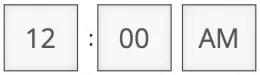
- Add the time when you ate or drank the meal, snack, or drink.
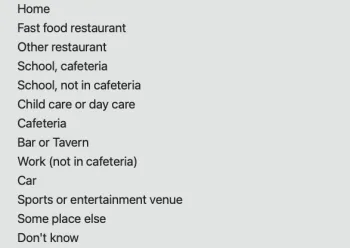
- Add the location of where you ate or drank the meal, snack, or drink.

- Click: Find Foods and Drinks

- Type an item from your meal, snack, or drink into the Search bar and click: Search. For example, type “breakfast sandwich” and then click Search.

- Select the item that is closest to what you ate or drank. There are two options for selecting an item:
Option 1: Scroll through the list of results to find the best match. For example, select “Egg sandwich” if this matches your breakfast sandwich.
Tip: If you can’t find a match, go back to the Search bar. Check the spelling or try typing a more general item name.

Option 2: Filter the results using the checkboxes on the left. For example, if your breakfast sandwich was an egg sandwich, select the category: Eggs. Then, scroll through the list of results to find the best match.

If you can’t find the item you’re looking for, there are two options:
Option 1: Click “Add a recipe” at the top of the list of results. Then, enter a recipe name. You will be able to add the ingredients later.

Option 2: Click “I can’t find what I am looking for” at the bottom of the list of results. Then, either click “Search again” (to go back to the Search bar and search for the item again) or click “Add” (to add the item). If you click “Add,” you will be able to add details about the item later.

- Repeat Steps 10 and 11 for any other items that were part of your meal, snack, or drink.
- As you add items, they will appear in a box on your screen.
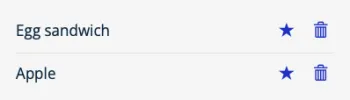
- When you have finished adding all of the items from your meal, snack, or drink, click: Finish with This Meal.
NOTE: If you do not click “Finish with This Meal,” then your progress for that meal, snack, or drink will not be saved.

- Next, click: Report a meal. Repeat Steps 6–14 for each of your other meals, snacks, and drinks.

- When you have no more meals, snacks, or drinks to report, click: Next

- Review gaps. Click: OK
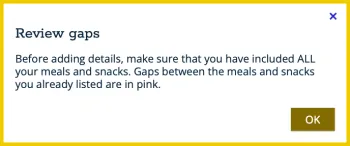
- If you need to add more meals, snacks, or drinks, click: Report a meal
- Once you have added all of the meals, snacks, and drinks you ate or drank the day before, click: Add Details. This will take you to a group of detailed questions about each meal, snack, or drink item you reported.

Part 3: Adding Details
- Add details for each meal, snack, and drink item that you reported. For example: Where did you get this food? The questions may depend on the items that you ate or drank. Questions may ask about things like portion size of the item and additional ingredients that you added to the item.

- After adding each detail, click: Next
- Done with details. A pop-up box will ask, “Do you want to add any other foods, drinks, or supplements?” If you think of any other foods or drinks you ate or drank the day before that you haven’t yet entered, click “Yes” to enter them. Otherwise, click “No.”

Part 4: Reviewing & Wrapping Up
- Once you have finished adding details, you will see the Review page. On the Review page, click “Show food details” in the top right to see your responses and check that they are correct.

- If you need to make changes to your response(s), click: Make Changes

- When everything looks correct and you’re ready to continue, click: Next
- Frequently Forgotten Foods: Select “Yes” if you forgot to report any of the foods/drinks in the list. Please answer “No” to the question that asks about beer, wine, or cocktails.
- Click: Next
- If a pop-up box appears, read what it says. If you have forgotten to report foods from any of the categories in the pop-up box, then click: Report Foods. If you did not forget any foods, then click: No Forgotten Foods.

- To add an item to an existing meal, snack, or drink, click: Add

- To add a new meal, snack, or drink that you have not yet reported, click: Report a Meal

- Then, click: Review

- On the Review page, when everything looks correct and you’re ready to continue, click: Next
- A pop-up box will appear that says, “Last chance: Did you have anything else to eat or drink [the day before]?”
NOTE: Once you click “No,” you will not be able to make any changes.

- A final question will appear that asks: “How usual was the amount you reported?”
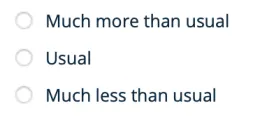
- To submit your recall, click: Next. Thank you!
Thank you for submitting your 24-hour food and drink recall! The research team at UC NPI will reach out to you if they need anything else from you. Otherwise, you will receive your e-gift card within the next few weeks. If you have any questions you can reach the team at schoolmealsstudy@ucanr.edu.
Based on ASA24: Reporting Foods, Drinks, and Dietary Supplements. The pictures above are screenshots taken in January-February 2026 of sections in the ASA24 online tool. The National Cancer Institute in Bethesda, MD developed the tool.
University of California Agriculture and Natural Resources is an equal opportunity employer. © 2026 UC Regents, Creative Commons 4.0 International License.