
Navigation is how visitors move through your site and find what they need. It's the system of links and cues that help people understand where they are and how to get somewhere else. Good navigation feels natural and intuitive — visitors shouldn't have to stop and think about where to click next.
The Many Ways People Navigate
Your site offers several ways for visitors to move between pages. Together, these create a complete navigation system:
- Menus: Show your site's main sections, usually at the top or side of a page
- Breadcrumbs: A short trail near the top that shows where the page fits in your site (for example, Home > About > Our History)
- Search: Lets users find content directly by typing keywords
- Links within pages: Inline links, buttons, or related content boxes that connect one page to another
Navigation and Site Structure
Navigation and site structure work hand in hand. Think of your site like a map:
- The structure is where your content lives — the pages and how they're organized
- Navigation is how visitors travel between those places — there are many routes to reach the same destination
For example, Los Angeles and San Francisco don't move, but you can reach them by many routes — Interstate 5, Highway 101, or a scenic coastal road. The same is true for your website: pages stay in one place, but visitors can reach them through menus, breadcrumbs, links, or search. A clear structure makes navigation feel effortless.
Your Site's Menu
Menus show visitors what's available and help them move around easily. Each site has a main menu that gives visitors a quick overview of your content. A good menu helps people understand your site at a glance and reach the topics they care about most.
Many editors worry about pages being too deep in the menu, but that's not always a problem. What matters most is that your structure makes sense. Visitors expect broad topics near the top and more specific information within those sections.
How Menus Work
- Main menu items: The top-level categories of your site (for example, Home, About, Programs, Events, Resources). These are always visible in the menu.
- Subpages: Pages that live under a main menu item. Subpages can appear as submenu items in a dropdown beneath their parent page (for example, "Mission and Vision" under "About").
Think of your site like a well-organized store. Store items (your subpages) are grouped into aisles by category (your main menu items). People expect to browse by category, not see every product at once.
Example: How It Looks vs. How It's Structured
How it looks
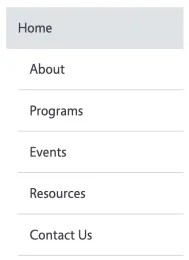
How it's structured
- About
- Mission and Vision
- Our History
- Programs
- 4-H
- Master Gardeners
- Nutrition Education
- Events
- Upcoming Events
- Training and Workshops
- Resources
- Publications
- Toolkits
- Policies
- Contact Us
Do's and Don'ts of Navigation
Want to Learn More?
The W3C Web Accessibility Initiative guide to navigation menus explains why accessible navigation matters and offers practical tips for building menus that work for everyone.