
What does it do?
The Collection content type is designed to group related pieces of content, such as articles, pages or videos, into one easily shareable unit. Collections provide a clean and organized way to present materials in one place, improving user navigation and enhancing content discoverability.
Collections can now be used for not only content but groups (i.e. sites and blogs) and featured on a Page content type.
Basic Sections
- Title (Required): The title of the collection, which is used to generate the page’s URL and display in the site navigation and breadcrumbs.
- Custom Slug: Populate to customize the part of the URL that identifies your content. If left blank, your title will be used.
- Primary Image: Allows users to upload one image that will appear prominently at the top of the page, usually full width, enhancing the visual appeal of the content. This image will also be used in teaser locations and social media shares, where applicable.

- Body: A WYSIWYG editor where the main content of the page is written. This section supports rich text, including formatting options like headers, lists, links, and media embeds. If no summary is provided, the body’s first 600 characters will be used as the default teaser in relevant listings.

- Type:
- Curated: This option allows you to manually select and organize the content included in the collection. Drag the content to the desired order to reflect in the group. Only Article, Documents, Event, Page & Tool content types are available to be added to collection.
- Dynamic: This option automatically includes content based on certain criteria, such as tags or publication date, making the collection dynamic and updated automatically as new content is added to the site. When no taxonomy is selected, everything is brought into collection. When multiple taxonomy terms of the same type are selected, an "or" case is used. Example: Counties are Alpine and Butte and Topics is Agriculture. Logic pulls Alpine and Agriculture or Butte and Agriculture.
- *NEW* List Items: For Dynamic and Curated Collections, use to filter what gets displayed. Group (sites, blogs), Content and All. The All option displays both Groups and Content in results.

- *NEW* Sort By: Used to update the order of the output. Options are Title, Publish Date, Start Date (For Events Content Types). For Curated Collections, leave this unset to sort items as they are in the content field.

- *NEW* Event Visibility: Use to filter your Event Content Type results to display expected results. Upcoming will include active and future dated events once you select Sort By's Start Date option.

- Curated - Content & Group Content
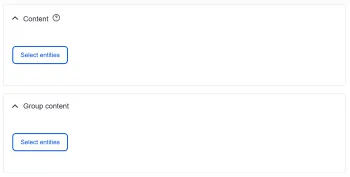
- On the “Content” and “Group Content” sections, to add to your collection, click Select entities button. Content section will allow you to select UC ANR Article, Event, Documents, Page, Tool, and Video content types to a collection. Group content section will allow you to add Sites and Blogs to a collection.
- On the dialog box for group content and content, search for the desired content, sites/blogs from within the UC ANR website. Use Title, URL Alias or Type to narrow your search results. To search by a content or group title in the Title, it helps to use quotes to find results due to the volume on content.
Tagging System:
- This section allows users to tag content for easier discoverability and categorization. Tags can be used to group the page with similar content based on:
- *NEW* Groups - Limit results to specific groups. For example, only pull in content from your own site.
- *NEW* Site Type - Limit results based on type.
- *NEW* Content Types - Limit results to specific Content Types, such as events.
- Commodity - (e.g., Cannabis)
- Counties - (e.g., Alameda)
- Cultural Practice - (e.g., Growth Control)
- Programs - (e.g., Master Gardeners)
- Research and Extension Centers - (e.g., Kearney REC)
- Settings - (e.g., Forest)
- Topics - (e.g., Agriculture)
- This section allows users to tag content for easier discoverability and categorization. Tags can be used to group the page with similar content based on:

Side Navigation
To expand and collapse the side navigation, please use the following icon.
- Menu Settings: Allows you to control how and where the page appears within the site’s navigation structure with:
- Menu Link Title: The title for the page that will appear in the site’s navigation menu. This can differ from the page’s title if desired.
- Description: An optional description for the link. This description can provide additional context for users when they hover over the link in the menu.
- Parent Link: A dropdown that allows you to select where this page fits within the existing menu structure. By choosing a parent link, you place this page under a broader category or section.
- Weight: Determines the order in which this page will appear relative to other pages in the same menu. A lower weight will move the link closer to the top of the list, while a higher weight will push it further down.

- *For Group Admin Role Only* - Simple XML Setups: Provides configuration options for including your content in the sitemap for search engine optimization (SEO). This ensures your content is indexed and prioritized correctly by search engine bots.
- Priority determines how important this content is compared to other pages on the site. The default value is 0.5.
- Change Frequency indicates how often the content changes. This helps search engines decide how frequently to re-crawl it. The default is set to "daily."
- Include Images allows you to specify whether images within the content should be included in the sitemap. By default, this is set to "No."
What do collections look like?
Below is a preview from IWP for a collection created in a group.
