
Group Admins are the only users able to provision users for Group Types of Sites and Blogs. Follow the steps below for adding access. For more information on specific user permissions, please refer to the User Roles.
1. Once logged into IWP and on your group, select Members tab.
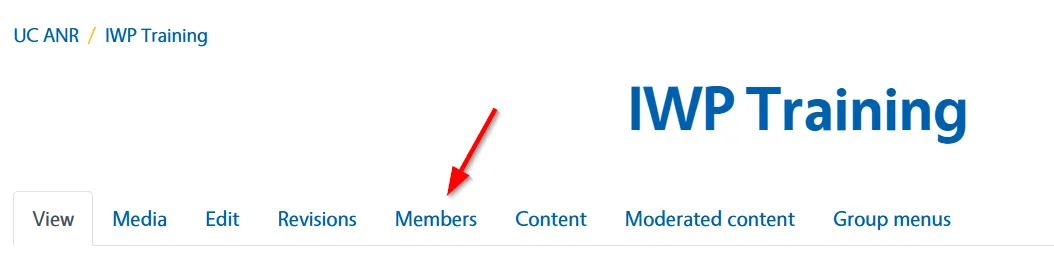
2. On this screen, you can view all active members of your group. To add member, click the Add Member button at the top right of the screen.

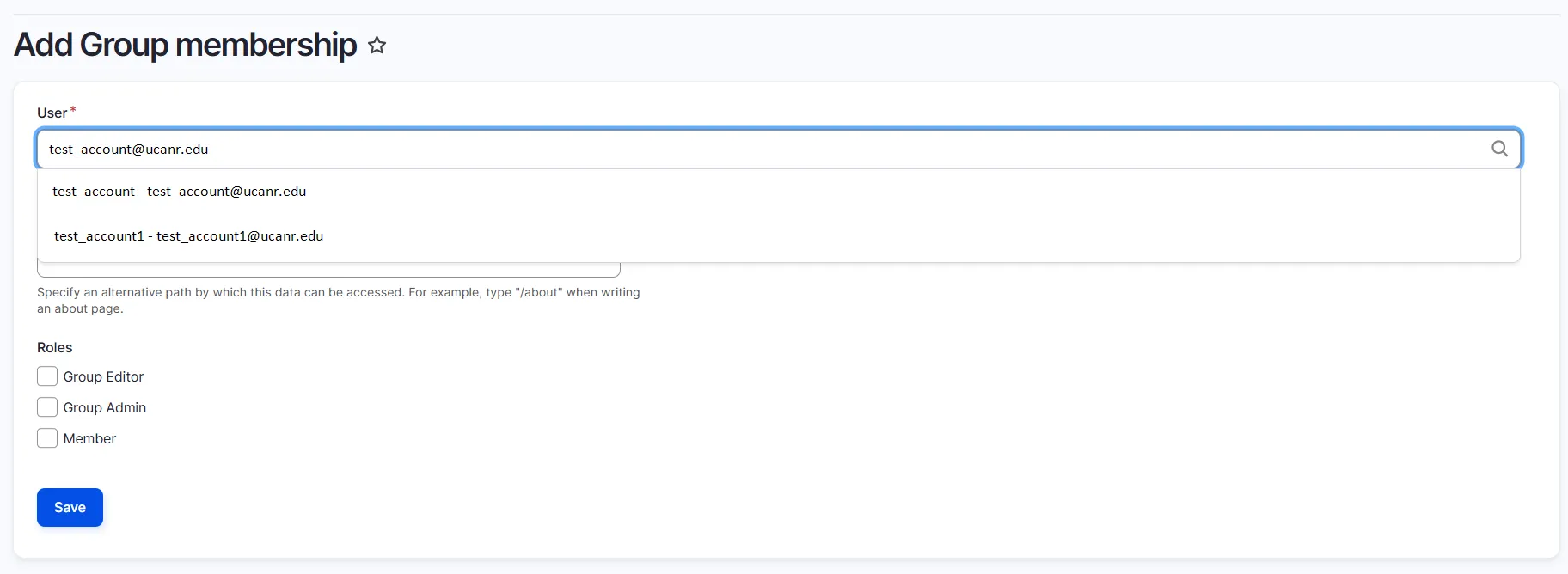
3. On the Add Group Membership screen, select from the User list to populate from an existing user list based on their email address or UC ANR username. Users are not created as they need to exist in order to add roles, see important note below. Once a user is selected, then select the relevant role(s) from the list and click the Save button.
Please note in cases where users do not show up:
For UCANR employees, if they haven't logged into ucanr.edu before they will not show up. Ask the employees to go to ucanr.edu and click Log In with their UC ANR Single Sign On. Then, a user will be populated and will show up via the user search.
For volunteers, they would need to be requested via the UC ANR Contingent Worker process for approval and setup.
4. Upon save, the newly provisioned user is added to the group members list and now will see the group on their My Account page.
To edit or remove an existing user’s access, you would select the Operations dropdown for the identified user:
- Select either Edit member to reassign group roles
- Select Remove Member to remove access to the group.