
Siteimprove is a combination SEO, Accessibility, Quality Assurance and Digital Certainty Index reporting tool for all UCANR.edu sites. By measuring these items, you can improve engagement, accessibility, and fix a number of items that affect the quality of your site.
- How to get a basic report on your site
- DCI Score Dashboard
- Interpreting the Results
- Digital Certainty Index
- Accessibility
- Quality Assurance
- SEO Audit
- Siteimprove Training
- Siteimprove Browser Extensions
- Siteimprove Troubleshooting
Some of the items measured by Siteimprove include:
- Broken Links at Page level.
- Broken Links inside of PDF files
- Content Quality
- Content Freshness
- Security
- User Experience
- Misspellings
- Frequency of new content
- Missing Alt Attributes for Images
- Missing Title Attributes for iFrame / Videos
- PDF Audit NEW
How to get a basic report on your site
You will need a Siteimprove account to learn about the issues with your site.
You can file a ticket at iwp@ucanr.edu and ask for a Siteimprove Account, and list the sites you want access to.
If you have a website that does not fall under https://ucanr.edu, but has a custom URL, you will need to file a ticket to add the site. You may also have to add a Javascript Snippet to just before the ending </body> tag. This may require a developer. Contact iwp@ucanr.edu.
Logging in to Siteimprove
Once your Siteimprove account is approved, you can login using your:
UCANR SSO: https://my2.siteimprove.com/Auth/Saml2/8343?v=2
For Volunteers who do not have SSO, once your account is set up, you can login here:
Local Account: https://my2.siteimprove.com/
At the top of the page you'll see: ANR - Integrated Web Platform. To the right of that you'll see a list of Groups you have access to. If you do not see your Group, you can add a new group by emailing iwp@ucanr.edu and filing a ticket.
Patience is required as Siteimprove is a bit slow. Because all UC's use Siteimprove, and they have many thousands of sites, it can take 8-10 days for a crawling cycle to end. You make a change to your site, click the refresh button at top of page, and it can take a week + for the site to update your score.
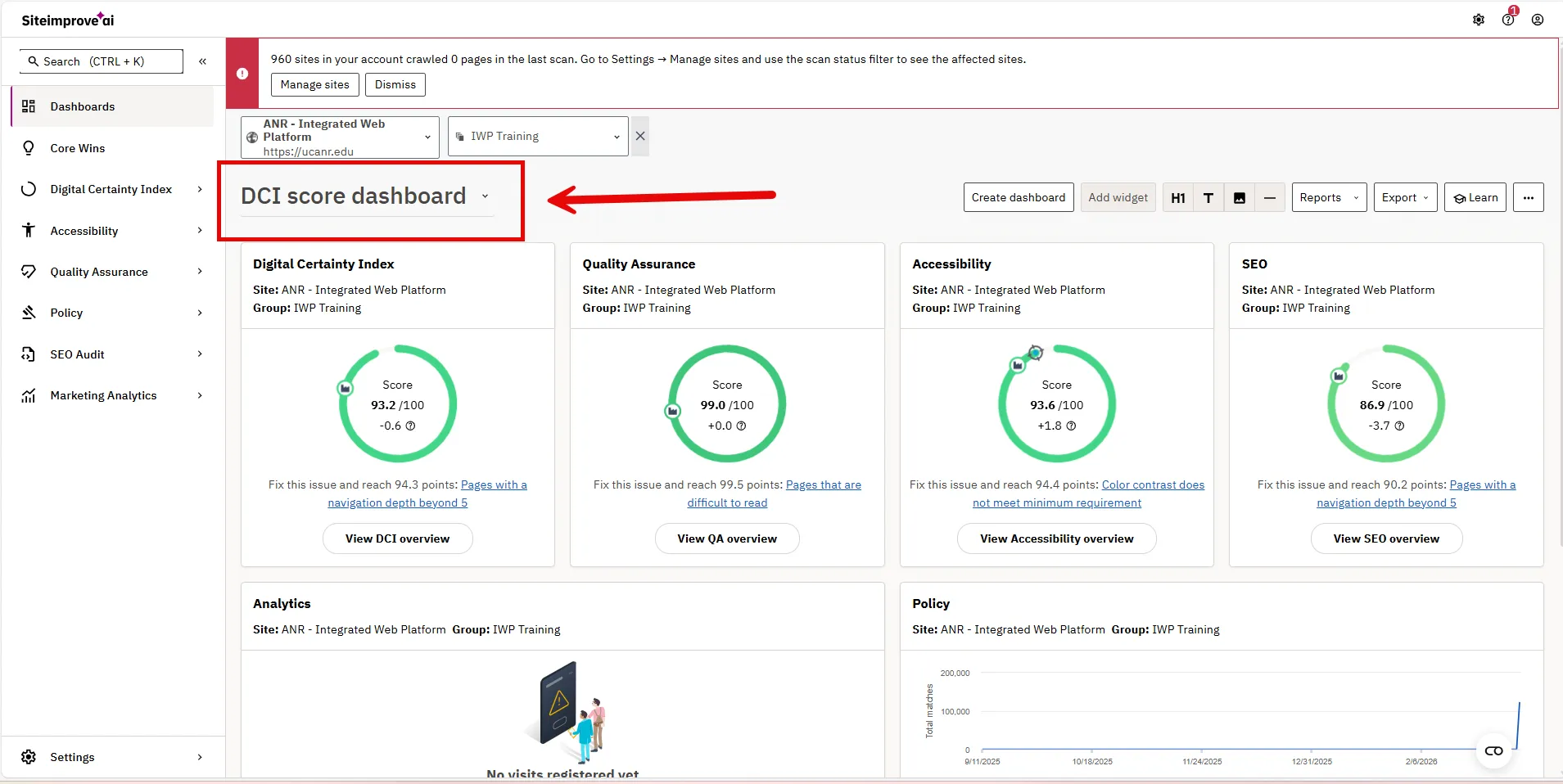
You should have all four metrics available to you as shown below. If not, change the Drop Down to DCI Score Dashboard.
Interpreting the Results
All scores are accessible in the left hand nav or from below the four metrics. You can click on the buttons underneath each metric. View DCI overview, etc.
Digital Certainty Index
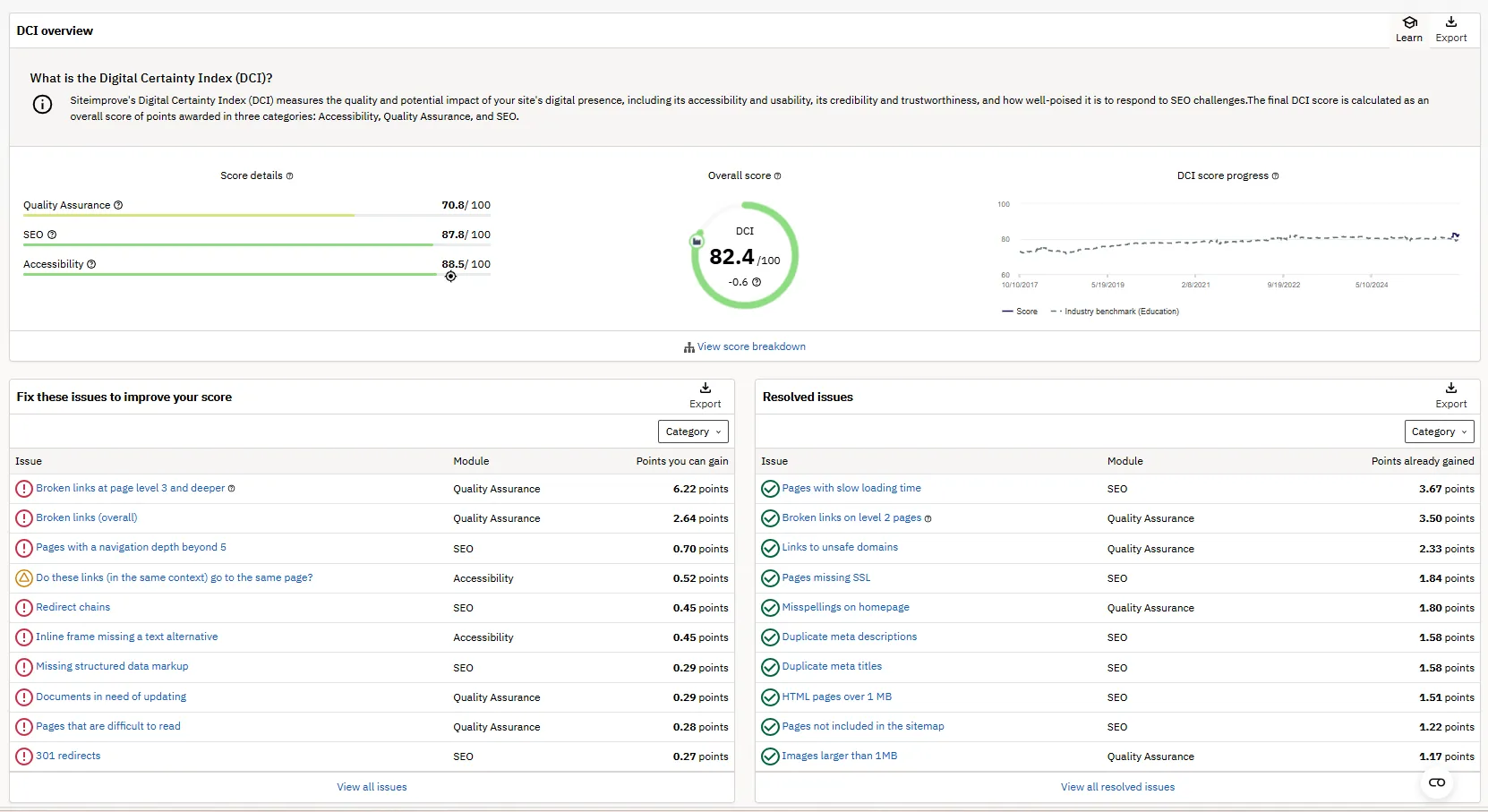
Siteimprove's Digital Certainty Index (DCI) measures the quality and potential impact of your site's digital presence, including its accessibility and usability, its credibility and trustworthiness, and how well-poised it is to respond to SEO challenges. The final DCI score is calculated as an overall score of points awarded in three categories: Accessibility, Quality Assurance, and SEO.
Accessibility
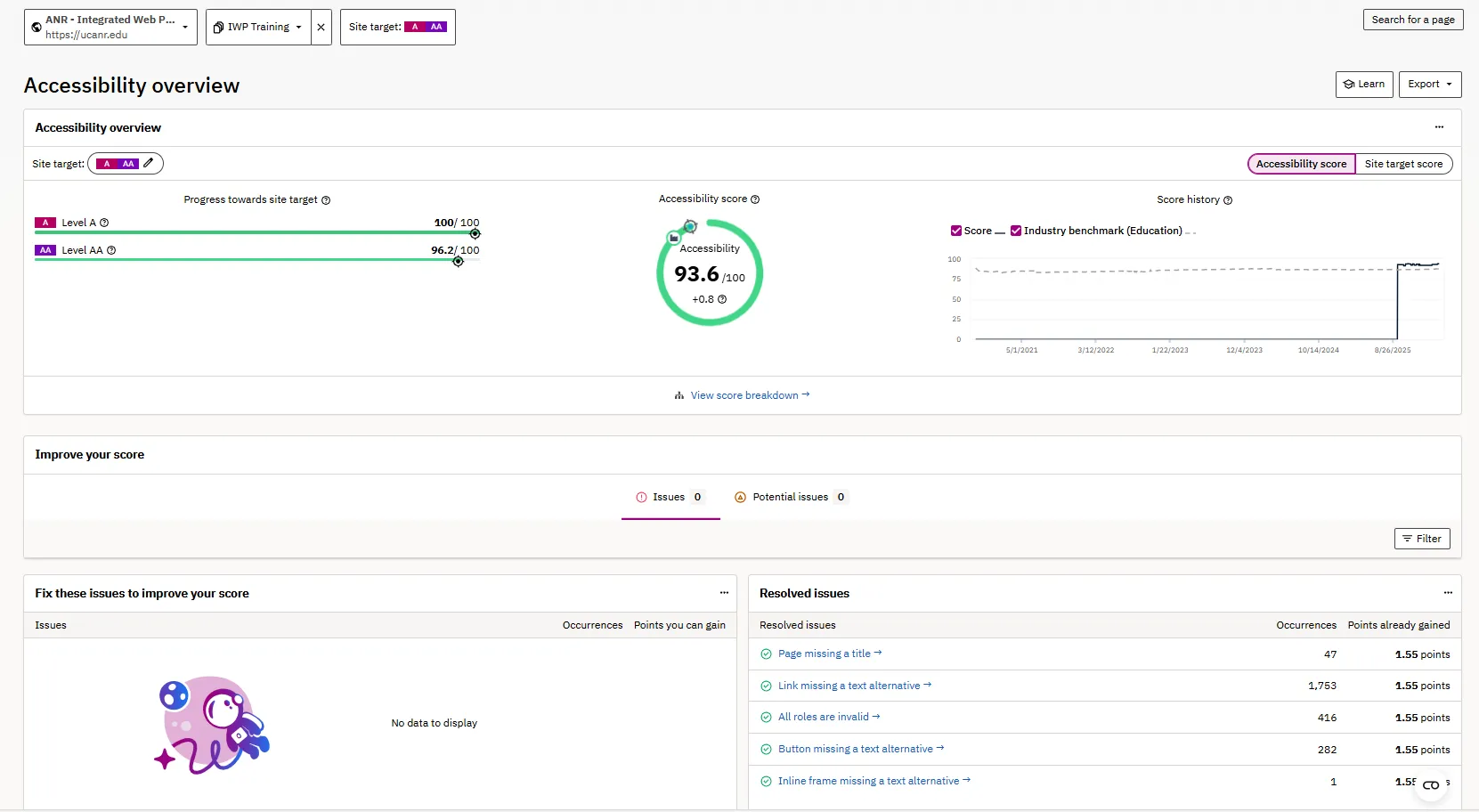
Adhere to the Web Content Accessibility Guidelines (WCAG) 2.2, which outlines how to make web content accessible for people with disabilities and user-friendly for everyone. Click on the View Accessibility overview button to see what you can do to improve your score.
PDF Audit: lists PDF files on your site, and let's you know Machine Readable, PDF Tags, and Accessibility Issues. It also tracks Clicks in the past 30 days! Access the new PDF scores from the left nav, under PDFs, and PDF Audit. NEW
PDF Validate: allows users to upload a PDF file and check out Machine Readable, PDF Tags, and Accessibility Issues. Access the new PDF Validate from the left nav, under PDFs, and PDF Validate. NEW
Quality Assurance
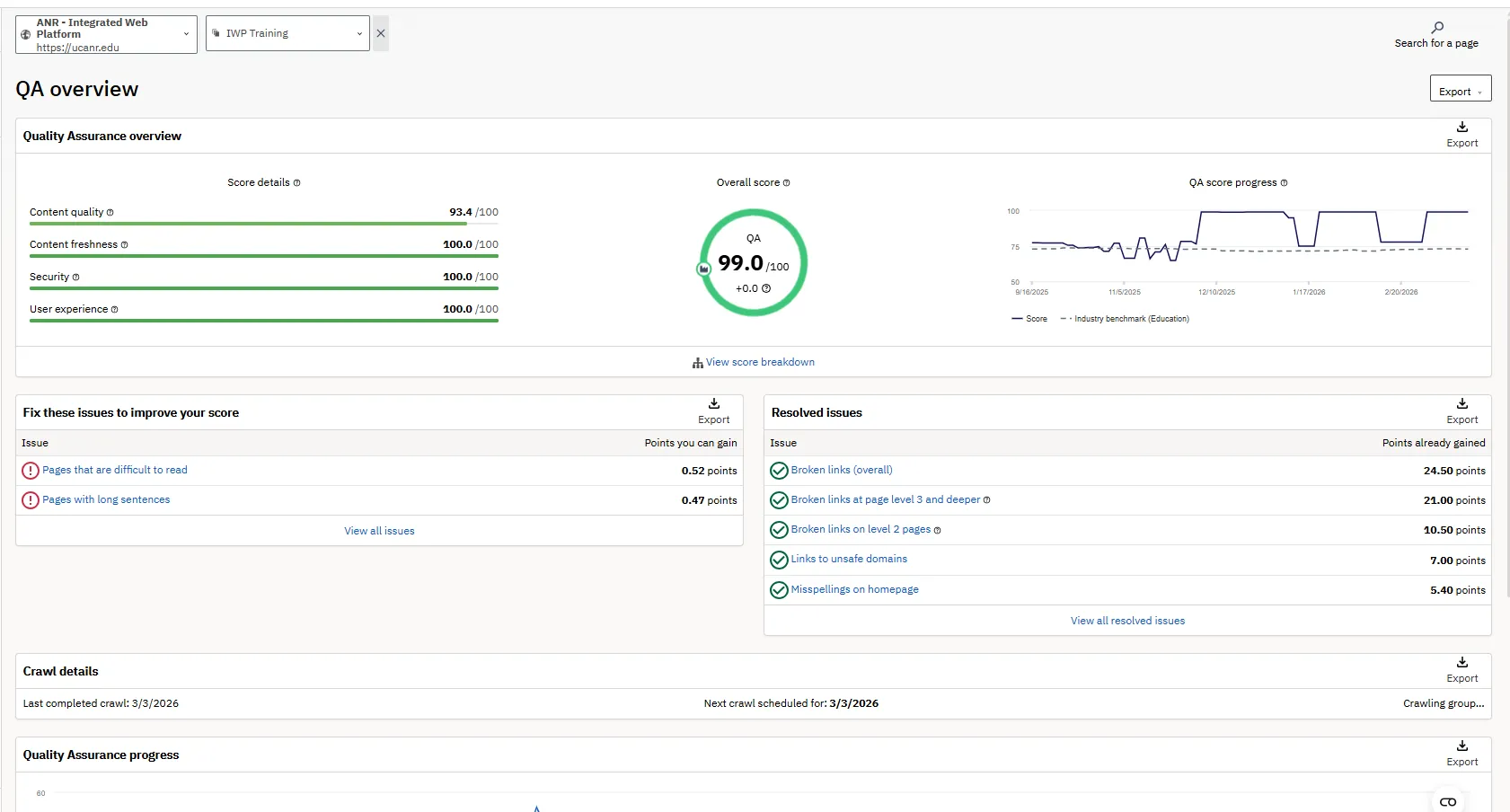
Measures Content Quality, Content Freshness, Security, User Experience, broken links etc. Click on the View QA overview button to see what you can do to improve your score.
Update:
Now that most sites have Accessibility Updates, it is time to focus on broken links. IWP has 12,382 pages with broken links. Please fix your broken links, by going to Siteimprove, choosing your site, and clicking on the Quality Assurance View QA overview button. Go through each page that are linked in "Broken links at page level 3 and deeper" and "Broken links on level 2 pages" and either fixing or deleting bad links.
SEO Audit
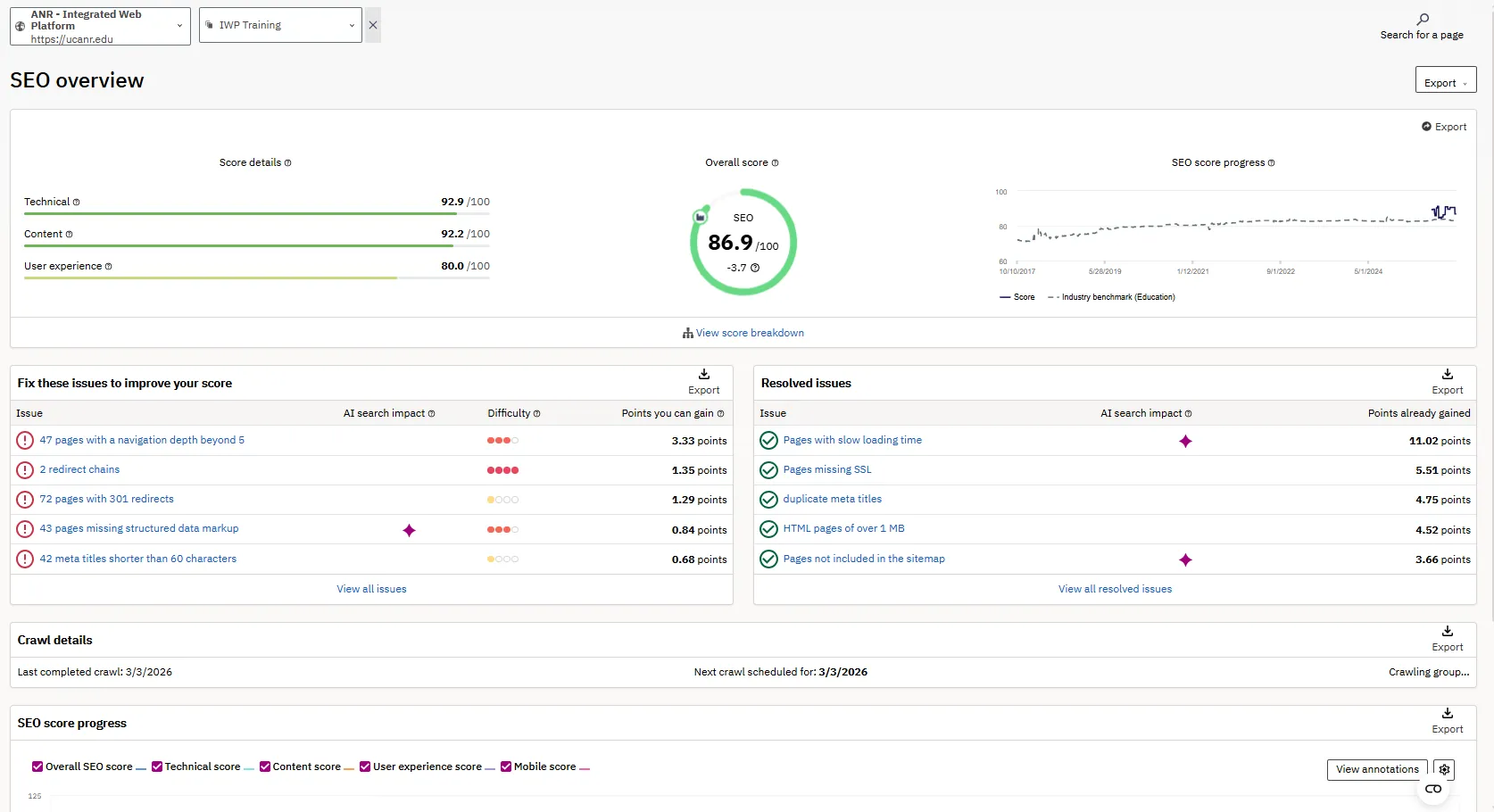
Measures Technical, Content, User Experience and Mobile. Records Desktop Speed, Navigation Depth, Redirects, broken links, 301 redirects, Low content word count, pages not included in Sitemap, Mobile speed etc. Click on the View SEO overview button to see what you can do to improve your score.
Siteimprove Training
Siteimprove has training on Accessibility, SEO, web fundamentals etc
Siteimprove Browser Extensions
Siteimprove has Browser Extensions for most modern browsers. Because the Siteimprove site suffers from performance issues sometimes the Browser Extensions are better.
Siteimprove Browser Extensions
Siteimprove Troubleshooting
Trouble Signing In
When a Siteimprove account request comes in, I use the email account associated with the ticket or another email account requested. Usually this means a user@ucanr.edu. But for some reason some folks login to SSO using a user@ucdavis.edu account. Please make sure you are logging in with the proper SSO account.
Sometimes your browser shows cached information, and you'll need to do a hard refresh:
A hard refresh forces a browser to clear cached files for a specific page and reload the newest version directly from the server, bypassing locally stored data. It is used to fix layout issues or display updated website content. Use Ctrl+F5 or Ctrl+Shift+R on Windows/Linux, and Cmd+Shift+R on Mac.Windows & Linux (Chrome, Firefox, Edge, Opera)
- Method 1: Hold Ctrl and press F5.
- Method 2: Hold Ctrl + Shift and press R.
- Method 3: Hold Ctrl and click the Reload button.
macOS (Chrome, Firefox)
- Method 1: Hold Cmd + Shift and press R.
- Method 2: Hold Shift and click the Reload button.
Safari (macOS)
- Hold Option + Cmd and press E to empty the cache, then press Cmd + R to reload.
Or you can open up a new browser incognito or private window and try logging in again.